

TransType 5
Universal font converter for Mac & Windows




Make all variable fonts work with all apps new
Convert fonts for web browsers (WOFF2 new , WOFF, EOT)
Revive legacy Type 1 fonts
Compile FontLab, Glyphs.app & UFO font sources new
Split and merge font families
Customize font menu naming
Rearrange bold & italic style linking
Optimize linespacing & screen quality
Add automatic kerning
Convert between all color OpenType flavors: SVG, sbix, COLR v0–1, CBDT better
Maximize color font support
Overlay and colorize traditional monochrome fonts, and turn them into color fonts
Apply smart algorithmic oblique (slant) new
Tweak width & weight
Burn tracking into fonts
Apply vector effects like perspective, blur, rounded corners, sharpening, distortion
Apply outline and shadow, then overlay
TransType is the best converter.
TransType just works, as advertized.
If you have problems with your fonts, you haven’t heard of TransType yet. You can convert fonts quickly and easily. (…) It lets you turn fonts to colored or monochrome.
TransType provides a simple way to convert Type 1 to OpenType.
TransType is your best bet. There’s almost zero learning curve.
The process of converting a font with TransType could hardly be simpler.
We can then fire up TransType 4 and import all four fonts. TransType allows you to overlay these fonts and give each layer a color, creating basic multicolor fonts.
Just yesterday I used TransType 4 to convert some old fonts in OTF and it did work flawlessly.
The only end-user software I know of, which converts Type 1 to OpenType, is TransType from FontLab.
Great app! It could be a very useful tool for small foundries.
With TransType, I was able to convert fonts and keep the version number. The there was no need to find-replace, InDesign recognized the converted font.
It is a good buy if you have a large collection of legacy Type 1 fonts.
So simple that if I did write an article on how they work, it would be a short one. (…) In minutes, I had my converted font installed and working.
TransType shows how all of the different styles in a type family connect to one another. Very handy when ensuring the proper connections between Romans and Italics are in place.
TransType 4 delivers exceptional value for designers with legacy font collections. The software transforms a potentially devastating situation (Type 1 obsolescence) into a manageable upgrade process.
Worked great.
TransType is a quick and easy way to colorize existing chromatic (layered) fonts.
TransType works like a charm and is pretty straightforward.
I had an old “personal handwriting” font that meant a lot to me. 24 years later, I wanted my old font to work. TransType 4 did exactly what I needed it to, and did it quickly. The font prints just as well as the original used to. I couldn’t be happier!
TransType is great — after some hit and miss experiments, I got my head around how to keep font families intact!
I’ve solved my problem using TransType. It’s not exactly cheap, but it works wonderfully. Highly recommended!
I renamed the fonts and fixed the style linking in TransType.
I'd suggest TransType as probably the best tool for the purpose.
If you only need to merge fonts then TransType from FontLab is a good option. I'm not affiliated, just been using that app for over a decade!

Drag-drop any number of fonts in any format: modern or legacy, variable or static, monochrome or color, desktop or web:
OpenType , TrueType, PostScript Type 1, OTF, TTF, TTC, PFB, SUIT, WOFF2, WOFF, FontLab & TypeTool VFB, FontLab VFJ & VFC, Glyphs .glyphs & .glyphspackage, Fontographer FOG, FontForge SFD, RoboFont UFO & UFOZ
Drag-drop ZIP archives or entire folders that contain fonts. Open installed fonts.

Choose the output Profile: the font format that you wish to convert into. (See OpenType compatibility overview for details.)
When TransType produces OpenType PS (.otf based on CFF PostScript), OpenType TT (.ttf based on TrueType) or CSS @font-face web fonts, it preserves all of the original font data.
Turn on Preferences optimizations: Linespacing to force harmonized line height across apps; Composites to make the fonts smaller; Kerning to smartly adjust spacing between glyphs.

Choose the output Destination. TransType will save the converted fonts in a folder you choose or in the original font locations, and can create subfolders based on the font names.
Turn on Install Fonts to make the fonts are instantly available in all apps on your computer right after conversion.
Finally: click the Convert › button and get industry-strength, cross-platform fonts that just work.



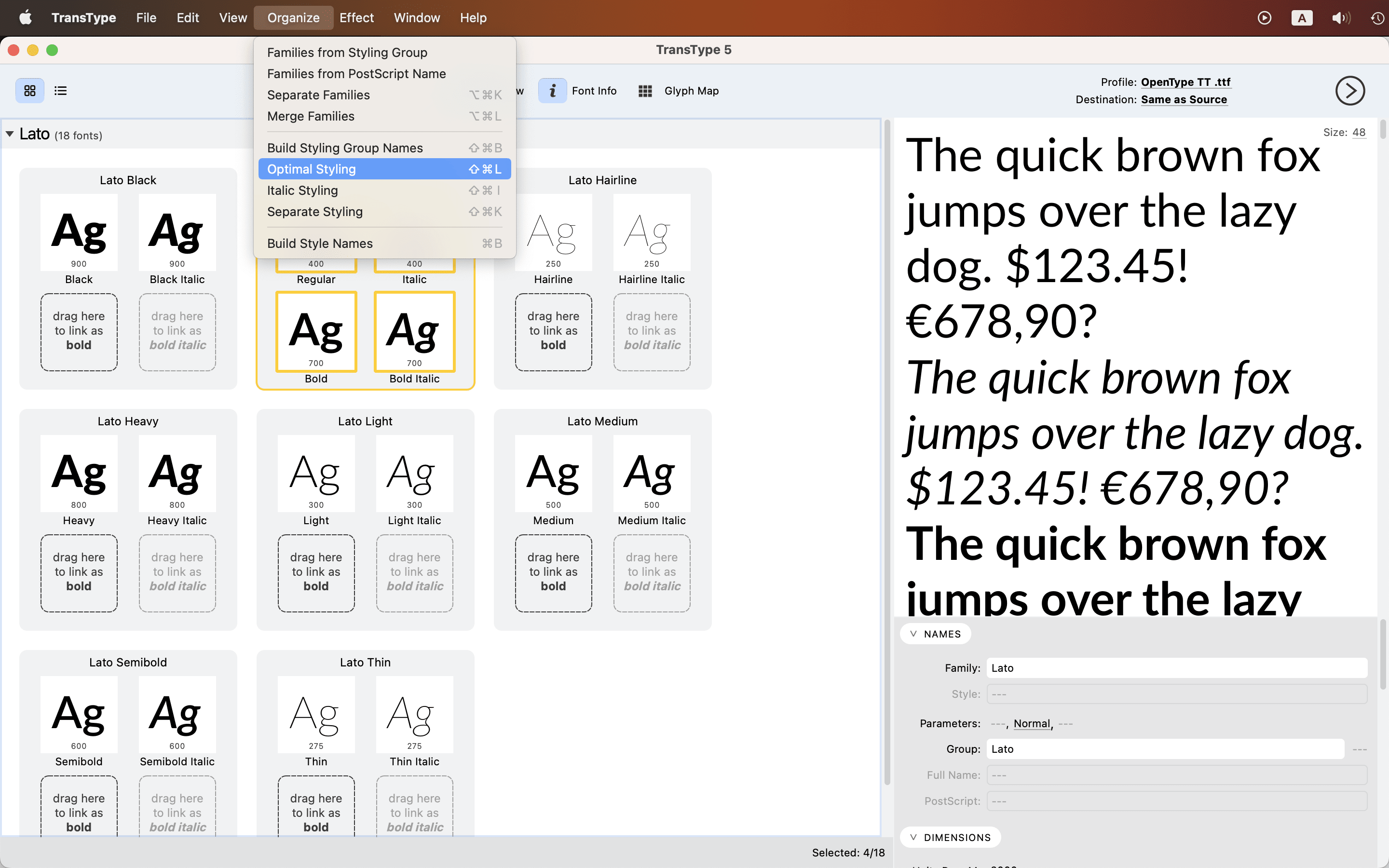
Split, merge or rename font families with just a few clicks, faster and easier than in any font converter ever before!
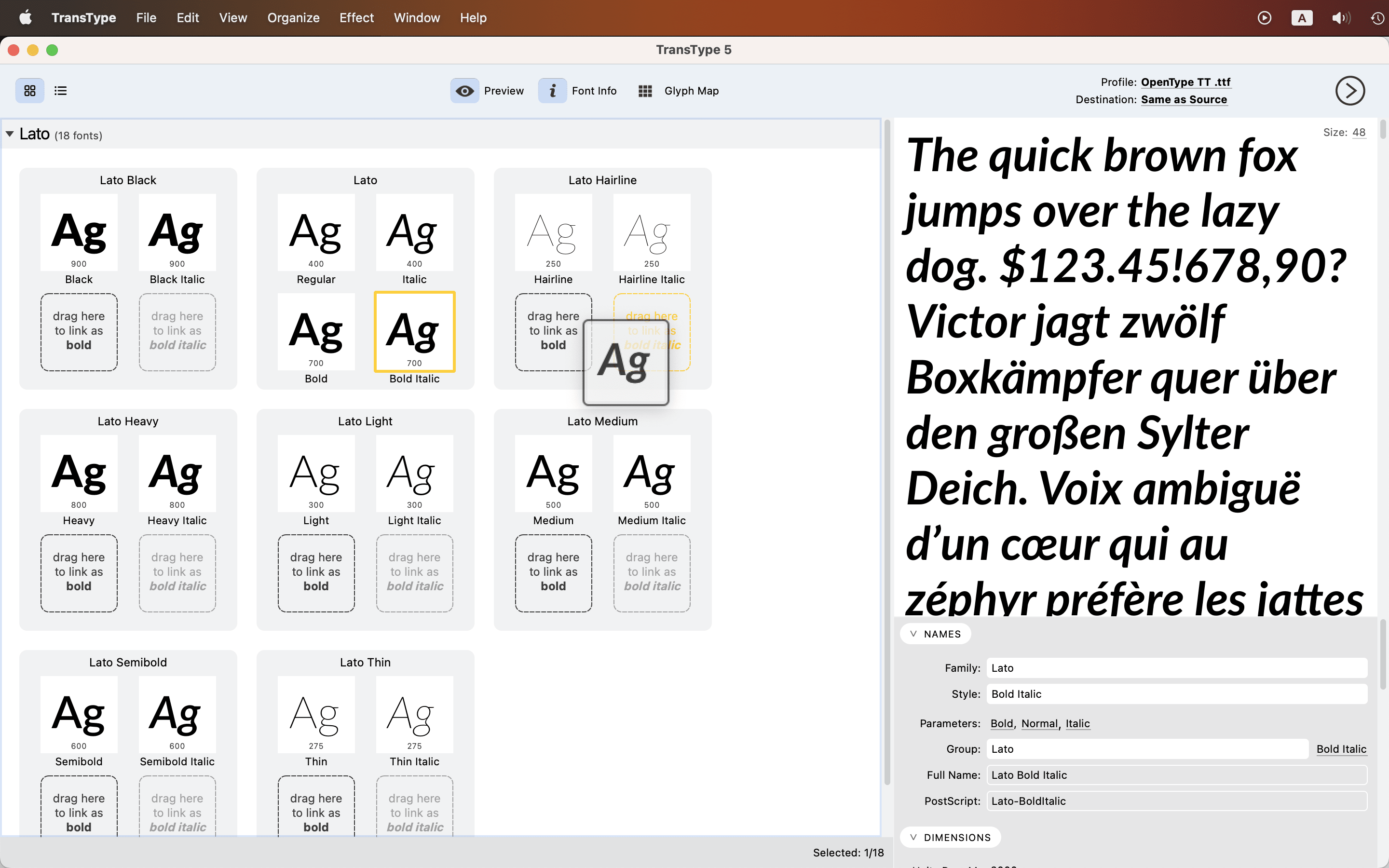
Separate Families: each selected font will show up in the app Font menu. Merge Families: fonts will appear as styles within one family.

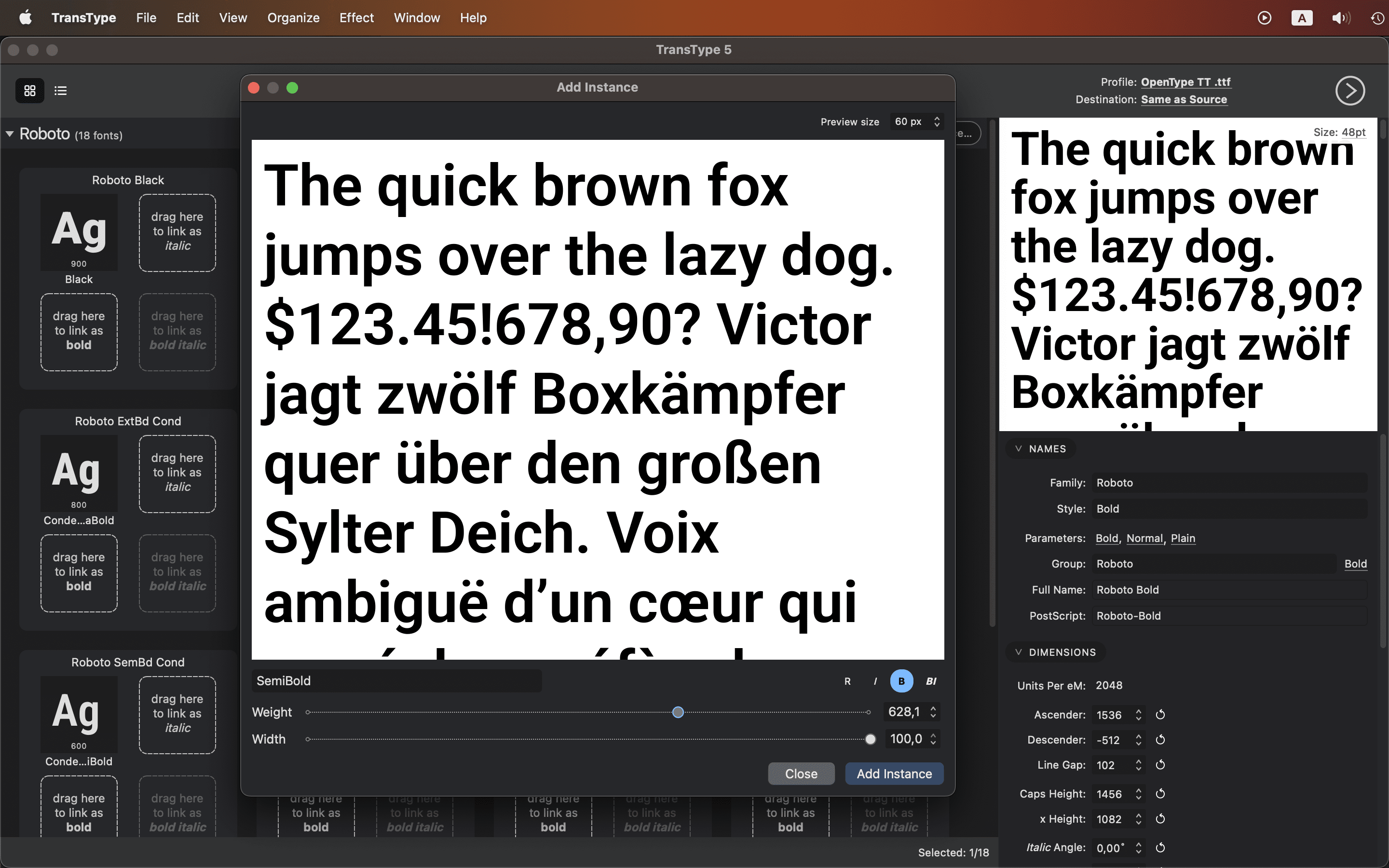
Open a variable font and Add Instance to turn any number of in-between variable instances into traditional “static” fonts that work in all apps and systems.
Export WOFF2, control TrueType hinting, and ship clean desktop or web deliverables.

Customize style names, styling group names and typographic family names. Set up Bold and Italic style-linking.
Your font families will work in Windows, Mac and Adobe apps, without ever missing a single font style. See the video!


Create gorgeous multi-color OpenType fonts out of bitmap fonts made with BitFonter, out of traditional outline fonts, or out of other color OpenType fonts.
Our OpenType compatibility overview tells you which apps and systems support color fonts.

TransType supports color OpenType formats — COLR, SVG, sbix, and CBDT.
They will work in Adobe apps, many Mac and Windows apps, in browsers — and with our free FontLab Pad app, everywhere!

Apply Outline or Shadow effect to any traditional font, and then Overlay them for instant layered chromatic typography.
Export the color font, or typeset right in TransType and export a PDF!


It’s not all work and no play for TransType.
Apply an expressive special effect to any font, especially an opensource font — voilà! You’ve just expanded your font library with additional styles.

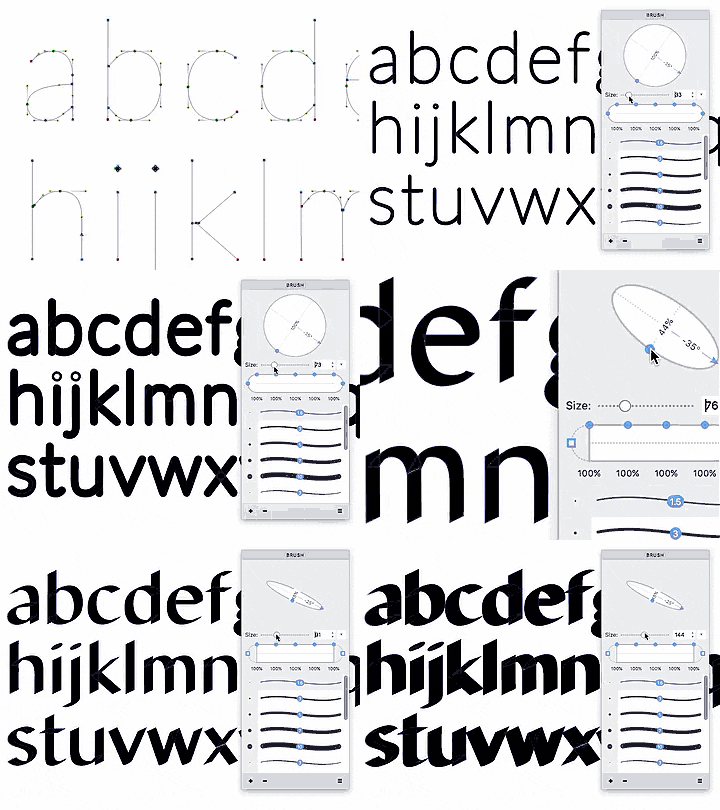
With spectacularly anti-typographic effects that include Slant, Smooth, Blur or the Distort — absolutely no drawing skills are necessary to ruin one type designer’s months of hard labor.

Speed up your workflows by applying Tracking and Auto Kerning. Blend between a light and a bold font to create intermediate weights.
Export customizable font previews and glyph maps as PDFs for your or your client’s reference.


TransType is a font converter for Mac and Windows. Made by FontLab.
Drop fonts in. Pick a format. Click Convert. Done.
It opens all common formats: OpenType, TrueType, Type 1, web fonts, variable fonts, color fonts, font sources. It exports OpenType desktop fonts, web fonts and color fonts. It revives dead Type 1 fonts. It turns variable fonts into static fonts. It fixes family names, style links and metrics. It applies effects, and it builds color fonts from layers.
No subscription. One license, two computers, unlimited conversions. Trial converts 10 fonts free.
OpenType is the font format that all modern apps and systems use. Microsoft and Adobe created it, and Microsoft owns the OpenType trademark.
An OpenType font is a container. It holds monochrome glyph outlines, metrics, names and layout features in a set of tables. The outlines come in one of two flavors: cubic PostScript curves (CFF or CFF2) or quadratic TrueType splines.
Both flavors are OpenType. Both work on Mac and Windows. TransType reads and writes both.
On top of the monochrome outlines, an OpenType font can also carry color outlines or color bitmaps. An app that does not support color glyphs simply shows the monochrome glyphs instead.
Our OpenType compatibility overview table shows what apps and systems support which flavors.
Yes. TrueType is an Apple trademark and an older format. OpenType is a Microsoft trademark, and OpenType is based on TrueType. Both formats use the same file structure.
A file with the .ttf extension is an OpenType font with TrueType-flavored outlines. The names “TrueType font” and “OpenType TT font” describe the same file. An OpenType TT font can also use the .otf file extension.
Do not convert a font only because it has a .ttf extension. Convert it when an app or a workflow needs the other flavor.
The OpenType PS flavor typically uses the .otf file extension. It stores the monochrome outlines as cubic PostScript curves. In the early 2000s, it was the typical choice for print and for Adobe apps. OpenType PS files are often smaller than the same fonts in the TT flavor.
The OpenType TT flavor (.ttf) stores outlines as quadratic TrueType splines. It is more widely supported than the PS flavor. It is the safest choice for Windows, Office apps, games and most web fonts.
Both flavors support the same layout features, the same Unicode coverage and the same color and variable extensions. Pick the flavor that the target app prefers. TransType converts in both directions.
Hinting is extra information in a font that improves the display at small sizes on low-resolution screens.
The PS and the TT flavor use very different hinting systems. Each system has its strengths and weaknesses. If glyphs look unequal or jumpy on screen, convert the font into the other flavor and compare.
When TransType converts between the flavors, it builds fresh hints automatically. In Preferences, you can choose the hinting method for TT output: FontLab, TTFAutohint, or no instructions. Turn on Optimize Hinting to build hinting from scratch even if you convert into the same flavor (PS to PS, TT to TT).
Type 1 fonts and monochrome OpenType PS fonts (CFF or CFF2-flavored OpenType fonts) use cubic Bézier curves. This is the type of curves used vector drawing tools (Adobe Illustrator. Affinity) and font editors (FontLab, Fontographer).
Monochrome OpenType TT fonts (TrueType-flavored OpenType fonts), which includes all TrueType fonts, use quadratic splines. These follow slightly different geometry.
A color OpenType-SVG font uses the PS or the TT flavor for its monochrome glyphs. Its color glyphs can use and mix both curve types inside one glyph.
TransType converts curves between the two systems with high precision. The shapes stay the same. Only the math behind them changes.
A variable font is one font file that holds an entire font family. The family is built so that you can interpolate (blend) the design along axes such as Weight, Width, Slant or Swashiness.
Variable fonts exist in both flavors: TrueType (.ttf, with gvar data) and PostScript (.otf, with CFF2 outlines). Color fonts in the COLR flavor (v0 or v1) can also be variable.
A variable font lists predefined styles (“named instances”) such as Light, Regular and Bold. An app with full support also lets you pick any in-between design. Many apps show only the named instances, and some show only one default style: see our OpenType compatibility overview.
To fix that, open the variable font in TransType and export the instances you need as traditional (“static”) fonts.
A color font stores colored glyphs inside an OpenType file. Five flavors exist: SVG, COLR v0, COLR v1, sbix and CBDT.
SVG and COLR are vector flavors. COLR v0 uses flat colors. COLR v1 adds gradients. SVG can mix vectors and bitmaps. COLR fonts can be variable. sbix and CBDT are bitmap flavors.
No app supports every flavor, see OpenType compatibility overview. Adobe apps prefer SVG, Windows and Chrome prefer COLR, Apple prefers sbix and SVG. TransType converts between all of them (if your source has vectors), so one design can reach every app.
Use WOFF2. It is the only web font format that matters today. Every current browser supports it, and it compresses better than any other format.
WOFF, EOT and SVG fonts are legacy formats. Use them only for very old browsers.
A WOFF2 file is an OpenType font with compression around it. TransType packs any desktop font into WOFF2 and also writes sample HTML and CSS files.
A collection is one file that holds several fonts. The fonts share tables, so the file is small. System fonts on Mac and Windows often ship as collections.
Many apps and font managers cannot handle collections. TransType opens .ttc and .otc files and writes each font as a separate file.
Type 1 is the PostScript font format from 1984. It uses cubic Bézier outlines and comes as a pair of files, such as .pfb and .pfm, or as a Mac suitcase.
Adobe ended Type 1 support in 2023. Recent macOS versions and many apps ignore Type 1 fonts.
The outlines are still good. TransType converts Type 1 fonts to OpenType PS or OpenType TT, and your old fonts work again.
Older Windows apps do not list every style by name. They show one “font” entry plus a B and an I button. That entry is a styling group, and it can hold at most four fonts: Regular, Italic, Bold and Bold Italic.
A large family must therefore be split into several styling groups, or some styles stay unreachable in those apps.
TransType builds correct styling groups for a whole family with one command: Organize › Optimal Styling. You can also arrange the groups by hand, with drag-and-drop.
Drag your Type 1 files or font folders into TransType. Choose the OpenType PS or OpenType TT profile. Click Convert.
TransType keeps the outlines, the kerning, the names and the version number. Your documents find the converted fonts without a manual search-and-replace.
Download the trial and convert 10 fonts free.
Open the .otf or .ttf font in TransType. Choose a Webfont profile. Click Convert.
TransType writes the .woff2 file, plus .woff and legacy companions, and a sample .html and .css file. Copy the @font-face rule into your style sheet.
Check the font license first. Many desktop licenses do not permit web use.
Open the .woff2 or .woff file in TransType. Choose the OpenType PS or OpenType TT profile. Click Convert.
TransType unpacks the web font into a normal desktop font that installs on Mac and Windows.
Check the font license first. Many web licenses do not permit desktop use.
Open the variable font in TransType. Every named instance appears as a separate font, ready to convert. Use File › Add Instance to add any in-between design: set each axis with a slider, watch the live preview, and accept or edit the suggested style name.
Choose the OpenType PS or OpenType TT profile. Click Convert. TransType writes one static font per instance. These fonts work in every app, including older versions of Office and Adobe apps.
TransType exports static fonts only. It does not write a new variable font.
TransType opens Mac Classic suitcases (FFIL and LWFN) and Windows Type 1 pairs. Choose the OpenType PS or OpenType TT profile. Click Convert.
Always add the complete suitcase or its ZIP archive, not a lone LWFN printer file. The suitcase holds the family grouping and the kerning; a lone printer font has the glyphs but loses the kerning.
Modern OpenType fonts are cross-platform. The converted fonts work on Mac and on Windows without a second conversion.
Adobe Photoshop, Illustrator and InDesign use SVG. Microsoft Office, Windows and Chrome use COLR. Apple apps use sbix and SVG. Android uses CBDT and COLR.
Open the color font in TransType and turn on the flavors you need in Preferences. TransType writes a separate font file for each flavor, so each app gets the file it understands.
Our OpenType compatibility overview shows what app & system supports which flavor.
Open all styles of the family in TransType. The Icon view shows how the family is grouped. Drag fonts between groups, or use the Organize menu: Merge Families joins strays into one family, Optimal Styling builds correct Bold and Italic links, Build Style Names writes clean style names.
You can also edit the family name, the style names and the Bold and Italic links directly, in the Main area or in the Font Info panel. Then click Convert.
The family then appears as one entry with the correct styles in Windows, macOS and Adobe apps. If TransType marks a font red, it wants you to review that font's naming — check it before you convert.
Yes. TransType opens FontLab (.vfj, .vfc, .vfb), Glyphs (.glyphs, .glyphspackage), UFO (.ufo, .ufoz), Fontographer (.fog) and FontForge (.sfd) sources.
Choose an output profile and click Convert. You get installable OpenType fonts without a font editor. For multi-master sources, TransType exports the instances, and Add Instance can create more.
Yes. The Effects menu applies Weight, Width, Slant, Tracking, Outline, Shadow, Blur, Smooth, Round, Sharp, Distort, Perspective and more.
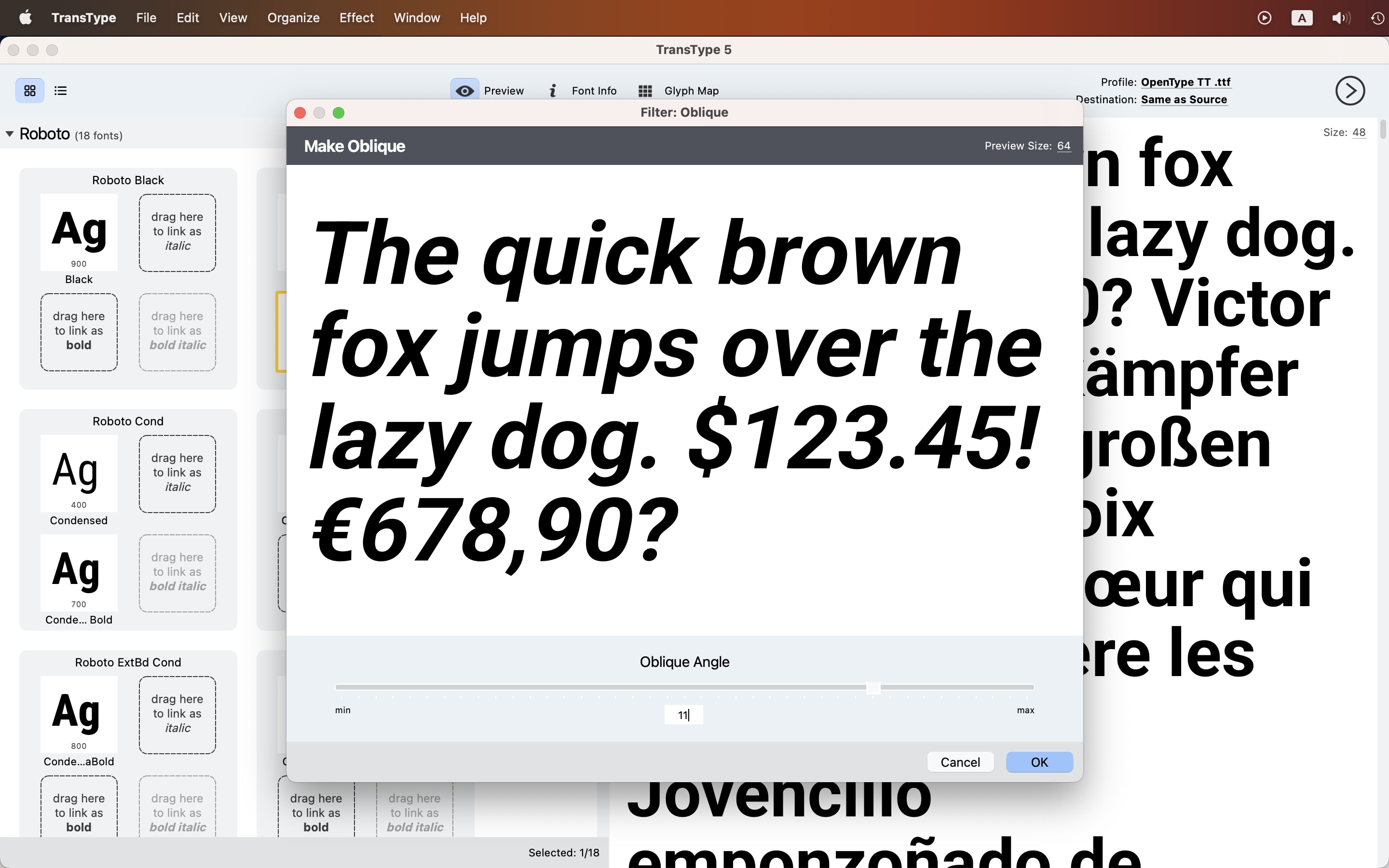
The Oblique effect slants a font with optical correction, so the result looks like a designed italic. Blend interpolates two fonts into an in-between design. Auto Kerning builds kerning pairs automatically.
Every effect creates a new font target next to the original, so you can compare both, stack more effects, and convert only what you like. Effects are automated: inspect the full glyph set before you ship the result.
Use Effects › Overlay Fonts. Select one or more fonts; each font becomes a layer. Give each layer its own color, opacity, offset, scale and blur, and arrange the layers by drag-and-drop.
The preview shows the finished color font. Click OK, and TransType adds it as a new target. The bottom layer provides the metrics, the kerning and the OpenType features.
This also works great with layered “chromatic” font families: stack the fill, outline and shadow fonts, colorize each, and export one color OpenType font.
Read the font license and the copyright law that applies at where you live or operate.
Many licenses permit format conversion for your own use, and many forbid redistribution of the result. Many desktop licenses do not permit webfont conversion. Vendors often sell webfonts separately.
Many font licenses and legal systems treat the font as a computer program. Copyright laws in some countries allow the lawful licensee or a lawful owner of a copy to adapt a computer program if the change is necessary to use the program for its purpose, or to make it work with other software: Article 5(1) of Directive 2009/24/EC in the EU, 17 U.S.C. § 117(a) in the U.S., Article 47-3 of the Copyright Act in Japan.
This is not legal advice, you must read, understand and interpret the law and the license yourself, or consult a legal professional.
When in doubt, always ask the font vendor first. TransType does not change the license that comes with a font.
OpenType PS (.otf) and OpenType TT (.ttf), static and variable. Collections (.ttc, .otc). Type 1 (.pfb, .pfa, .pfm, .afm). Mac Classic suitcases. Web fonts (.woff2, .woff, .eot, .svg).
Color fonts in SVG, COLR v0, COLR v1, sbix and CBDT flavors. Photofont (.phf).
Font sources from FontLab (.vfj, .vfc, .vfb), Glyphs, RoboFont and UFO, Fontographer, FontForge and Adobe FDK (.fea). Also ZIP archives, whole folders, and fonts installed on your system.
OpenType PS (.otf) and OpenType TT (.ttf). Type 1 for Windows (.pfb) and Unix (.pfa), for legacy workflows that still need it.
Color OpenType in SVG, COLR v0, COLR v1, sbix and CBDT flavors — a separate file per flavor that you enable in Preferences.
Webfont packages: WOFF2, WOFF, EOT and SVG, together with the base desktop font and sample HTML and CSS files.
Yes! TransType 5 opens variable fonts in the TrueType flavor, in the CFF2 flavor and with COLR color.
It turns the named instances, and any instance you add, into static OpenType fonts. The list, the preview and the glyph map always show the exact instance you selected.
TransType does not export a new variable font — the output is always static.
Yes! The Preview panel shows your own sample text in every selected font. Characters that a font does not contain are highlighted in blue.
The Glyph Map window shows the complete glyph repertoire. You can search it by character, glyph name or Unicode range, and copy glyphs into the Preview.
Your source files are never touched. TransType edits only the conversion targets, so you can experiment freely.
Yes! Export any preview text to PDF from the Preview panel. Export the full glyph map to PDF from the Glyph Map panel.
Use the PDF files for proofs, specimens or font catalogs.
Mac: macOS 11 Big Sur or newer, including macOS 27 Golden Gate. Universal binary for Apple Silicon and Intel.
Windows: Windows 10 or newer, including Windows 11. 64-bit, also runs on ARM.
One lifetime license for one user. Install TransType 5 on up to 2 computers, Mac or Windows, with the same serial number.
Convert as many fonts as you need, with no subscription and no time limit.
Owners of an older TransType get an upgrade discount.
Yes. The free trial is the full app, and it includes 10 free font exports.
Add fonts, organize families, preview everything, and convert 10 fonts free. Activate with a license to convert without limits.
1. Drag fonts, folders or ZIP archives into the Fonts area.
2. Choose an output profile, such as OpenType PS, OpenType TT or a Webfont package.
3. Click Convert. TransType saves the fonts to the folder you choose, or next to the originals, with optional subfolders per family.
If some fonts are selected, TransType converts only those. To convert everything, click an empty area to clear the selection, then click Convert.
If a file with the same name already exists in the destination, Preferences decide what happens: Rename (keep both), Overwrite, or Skip.
Yes. Turn on Install Fonts in the Destination menu before you click Convert. Each converted .otf or .ttf font becomes available in your apps right after conversion. (Web-only files and Type 1 output are saved, but not installed.)
The full TransType 5 manual is at help.fontlab.com/transtype-5 — it covers every panel, profile, effect and keyboard shortcut, and includes a troubleshooting chapter.
In the app, the Help menu opens the manual and the release notes.
New support for variable OpenType TT & PS, color OpenType COLR v1, WOFF2 web fonts, FontLab VFC & VFJ, Fontographer FOG, compressed UFO, DesignSpace, RoboFont, Glyphs & FontForge sources.
Better opening of color OpenType SVG, sbix & CBDT, FontLab Studio 5 & TypeTool VFB & PostScript Type 1.
Add a variable font & export all predefined named instances as standalone static fonts. Choose File › Add Instance, add as many arbitrary in-between instances as you like.
Organize them with family names & styling links, turn on Install Fonts in Destination dropdown, click Convert.
Modern, ultra-compressed WOFF2 format in the Webfont PS or Webfont TT profiles. Supported by all modern browsers, no need to deploy other web font flavors.
Greatly improved color font export. Independently toggle SVG, COLR, sbix & CBDT. Gradients export as COLR v1.
In Preferences, Composites convert repeating outlines into composites. Linespacing auto-calculates vertical dimensions, you tweak them in Font Info.
Auto-compress flat Kerning into class kerning. Choose TrueType hinting engine to balance file size and screen quality.
With Shadow, create vector drop shadow & outline, export or Overlay for instant chromatic lettering. Not a replacement for an experienced type designer, but a start.
Oblique effect performs algorithmic correction that improves the slanting distortions of a simple Slant.
Dark and light UI. English, German, Spanish, French UI language versions.
Mac: fast native universal Apple Silicon & Apple Intel app for macOS 11 Big Sur, macOS 27 Golden Gate & beyond.
Windows: fast native 64-bit app for Windows 10 & 11 & beyond.
In the early 2000s, OpenType promised to become a single universal font format. Today, apps and systems typically support certain aspects of the OpenType format, but not all of them.
All apps and systems let you typeset texts in European languages using the Regular, Italic, Bold and Bold italic styles of the font family.
But if your text is in a complex script like Arabic or Indic, if you need user-controlled features like small caps and ligatures, multi-color glyphs, or in-between variable weights or widths — the app support differs.
Support is better in newer apps & systems, but OpenType fonts exist in a variety of “flavors” (sub-formats).
Click the button above the open an interactive table that shows (to our best knowledge) which apps and systems support what aspects of OpenType.
If you need to use a font in an app that doesn’t support variable fonts or a certain color font flavor, you can use TransType to convert the font to a more suitable flavor of OpenType.