What’s new in FontLab 9

FontLab 9

FontLab 9 brings new ways to draw and refine letterforms, work on variable families, and review kerning. The new Stem tool, Sigma, and Superkerning give you more control over the weight of a stroke, the shapes between masters, and the space between letters.

We’ve also reworked the workspace, expanded file support, and added Aidus, our optional AI assistant. A new user manual covers the app from drawing to export.

Read the blog post for detailed information about FontLab 9 features.

For macOS and Windows.

FontLab 9 editing the diagonal stems of a W, with the font’s glyphs and weight variations in view.

Moving, rotating, and changing the thickness of stems.

The Stem tool

Select the diagonals in a W and add weight to them together, or rotate one leg of an A around its foot. The Stem tool adjusts the connected contours as you work, including the joins between strokes. You can then refine the outline with the Contour tool.

The tool works with detected horizontal, vertical, and diagonal stems. Move them, rotate them, or change their thickness, one at a time or together. Numeric controls let you give selected stems a common width or add the same amount to each while keeping their differences.

With Edit Across Glyphs enabled select stems in several letters and adjust them together, with the rest of the text there to judge the result.

Sigma

A pair of good masters doesn't always produce the shapes you want in between. A counter can close too quickly on its way to a heavier weight, or a join can gain more weight than the surrounding strokes.

The new Sigma tool lets you adjust how corresponding points move between compatible masters. Instead of following straight paths, selected points can follow quadratic or cubic trajectories that you shape yourself. The positions in the source masters stay unchanged.

Bracket layers

Bracket layers let a glyph change construction at a chosen location in the design space. A dollar sign, for example, can use two strokes in lighter weights and switch to one in heavier weights. Both designs stay in the same glyph.

Masters within each range remain compatible, while the drawings on opposite sides of the switch can have different contour structures. Each range interpolates its own design.

Reviewing pairs in context and checking their kerning classes.

Superkerning

The new Superkerning panel shows pairs in words set in your font. Saved pairs appear alongside suggestions from a text list, so you can review the work you've done and find relationships you haven't kerned yet.

Simple preview gives you a clear view of the letters. Detailed preview adds an overlay of other members of the kerning classes. That makes it easier to catch a value that suits the representative pair but causes trouble for an accent or a different terminal elsewhere in the class.

Adjust pairs by dragging, using the arrow keys, or entering values directly. You can autokern selected rows or give several pairs the same relative adjustment; one Undo reverses the group edit.

Autokerning and Auto space gains a neural method and improvements to the optical method. Both give you starting values to review and refine.

Drawing and measurement

Better measurements

Thickness rainbow following the curved strokes of an S in FontLab 9.

Quick Measurement and the thickness rainbow now work along curved and diagonal stems, helping you check the weight around a bowl or through a slanted stroke. The Measurements widget brings the controls together in the Glyph window.

Smoother corners

Curvature-smooth corner with Bézier handles in FontLab 9.

Smooth Smart Corners can match the curvature of adjoining contours—G2 continuity—giving rounded forms such as squircle corners a smoother transition into their sides. Genius nodes also support curvature-smooth transitions at tangent joins.

Ink traps and obliques

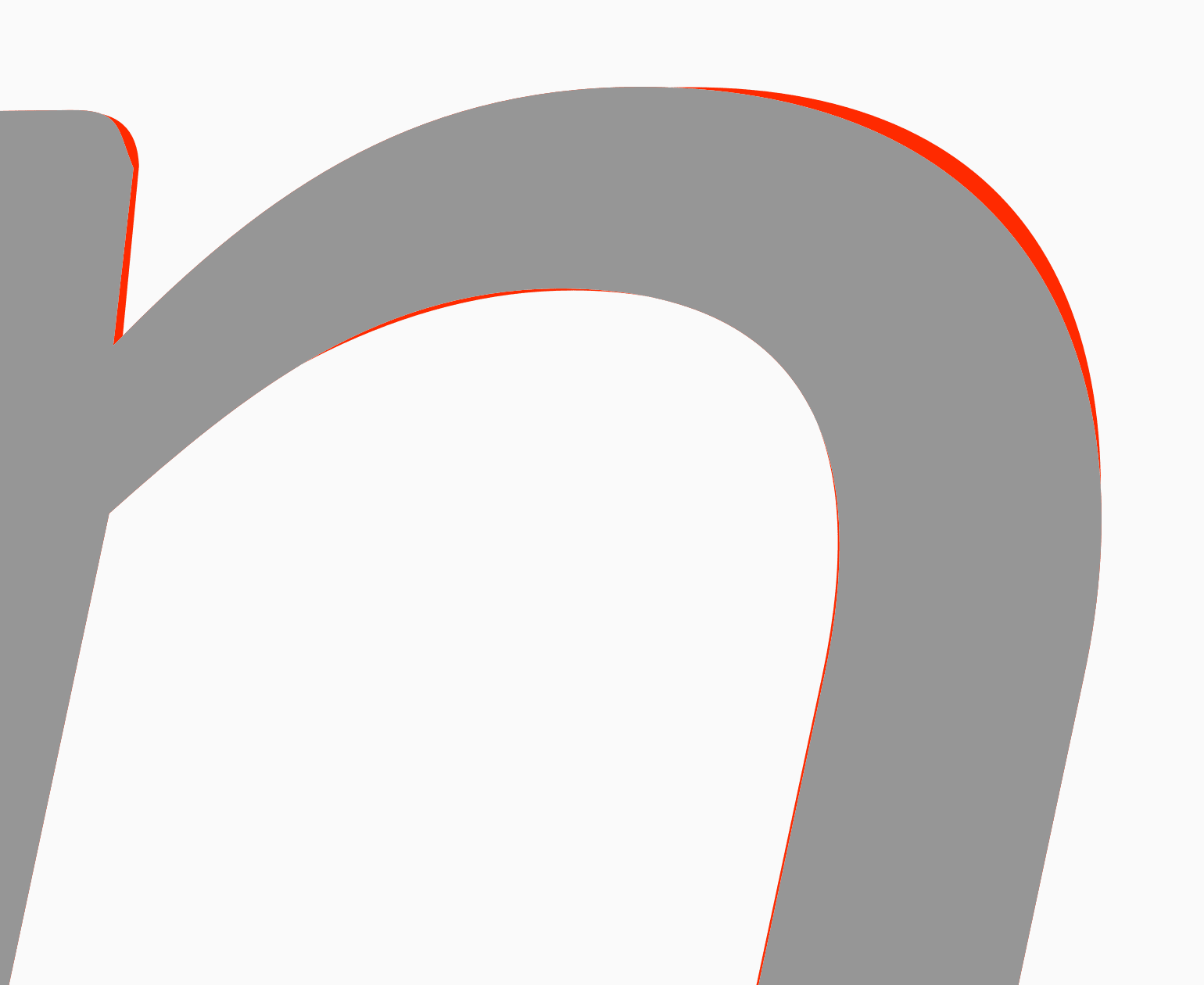
Slanted lowercase n with an overlaid comparison of the curves.

Preview ink traps as you adjust their depth, width, angle range, and smoothing. The Oblique action uses Italicize's curve fitting and can adjust width as it slants glyphs.

Power brush

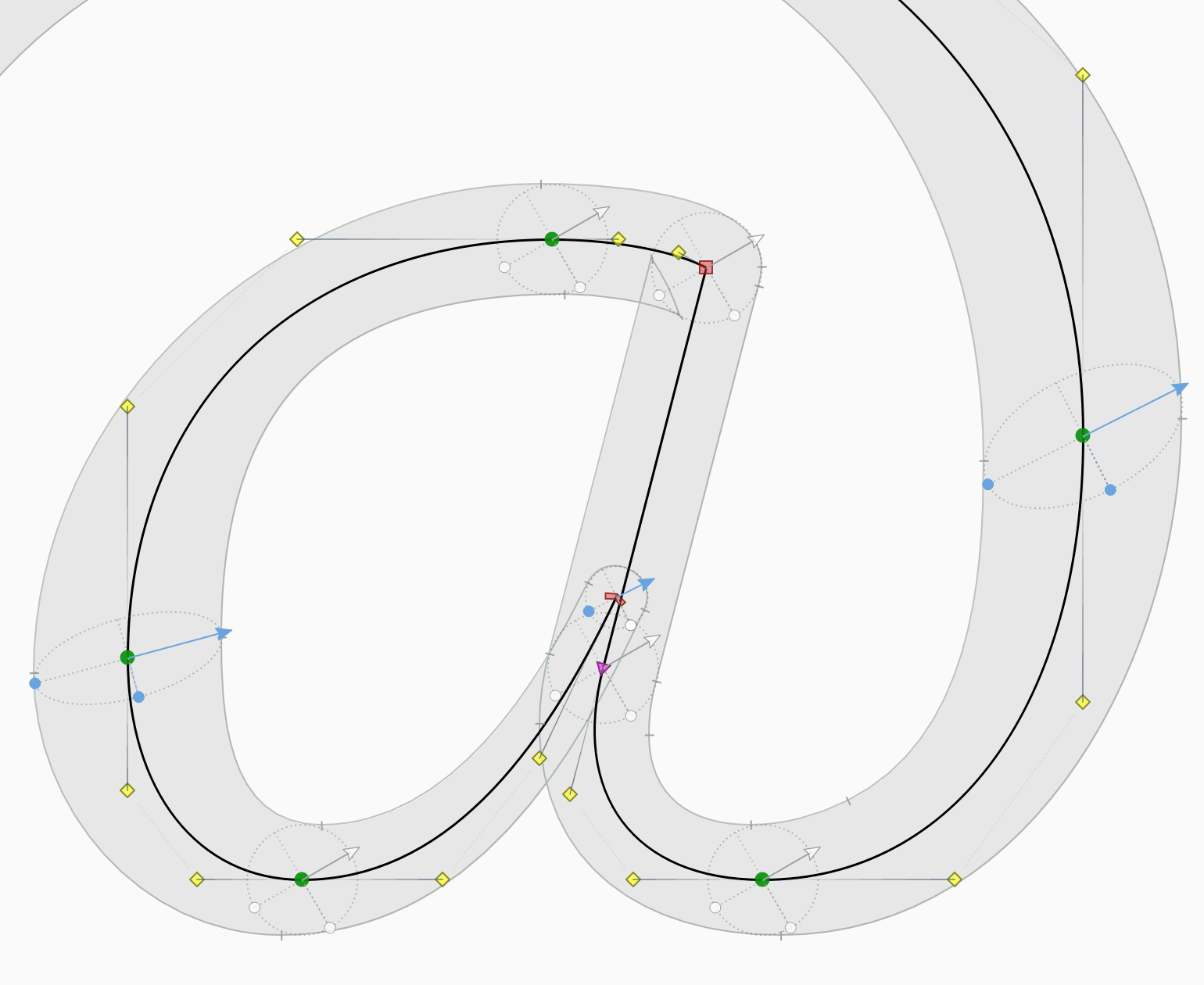
Power Brush stroke and control points forming a lowercase a.

Power Brush gains finer control over thickness, angle, and contrast at stroke control points. The improved Pen tool previews the next segment and lets you draw corners, curves, and tangent joins or refine existing handles.

FontLab 9’s compact toolbar, document tabs, and Weight variation widget.

A reworked workspace

Document tabs now sit in the title bar on both macOS and Windows. A compact Tools panel groups related controls, while new Glyph window widgets put useful information beside the drawing.

The Fonts widget shows the current glyph in other open fonts and lets you switch between them. Masters gives you access to its master layers, and Variations lets you explore the intermediate designs. The Info widget keeps the glyph's name, metrics, and bounds nearby.

Variations widget comparing a capital B across weight, width, and contrast.

We've also added more control over everyday tasks. Paste Special lets you choose which data to paste and which masters receive it. Edit > Repeat runs the last repeatable command when it's available in the current context.

Notepad

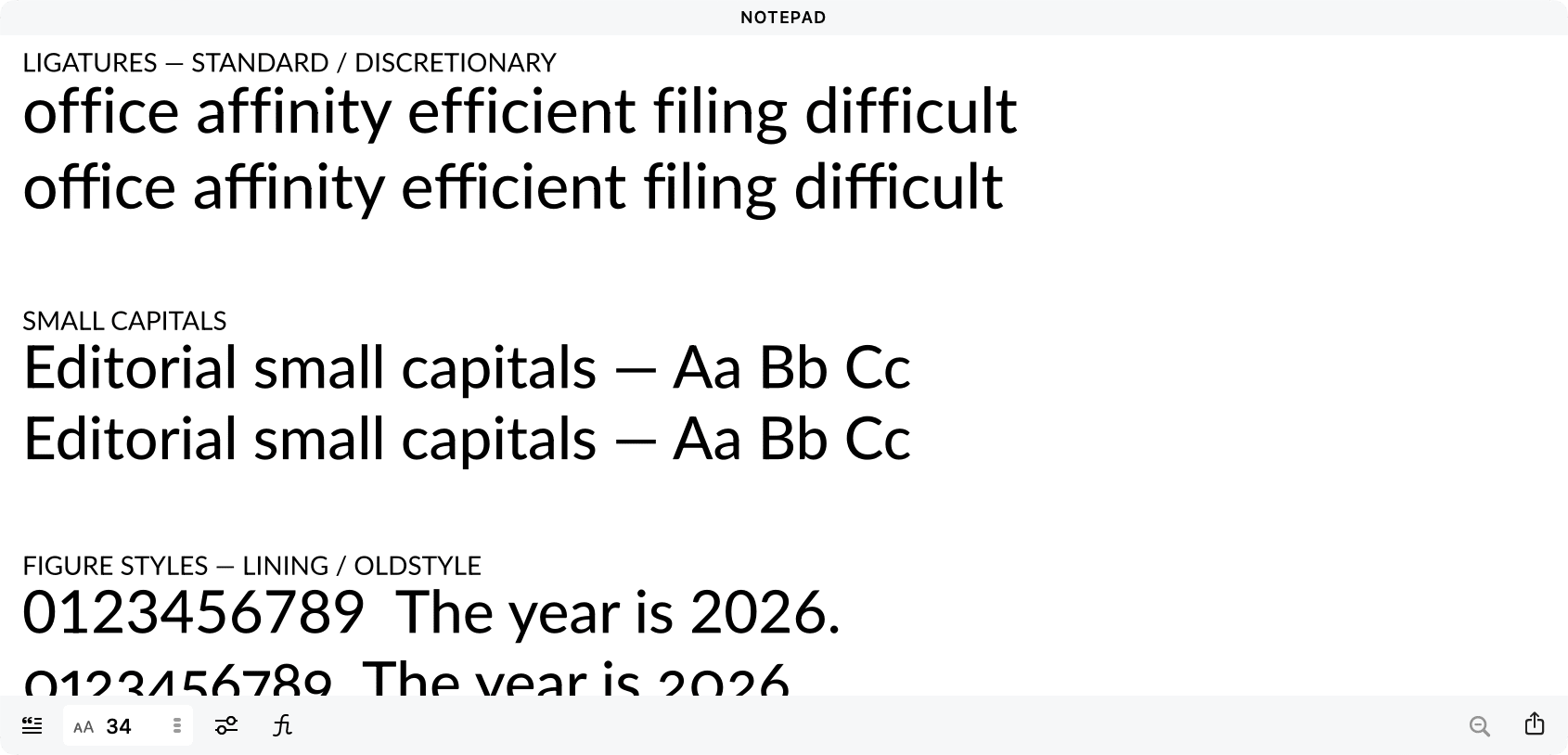
The new Notepad panel gives you a place to build and edit a specimen in the current font. Mix text sizes, compare OpenType features, or set passages at different variation locations. Start with your own text or a preset, including waterfalls, kerning pairs, and variation ramps. Text and formatting stay with the native font file, and you can export the full specimen as a vector PDF with searchable text.

Notepad specimen showing standard and discretionary ligatures at several text sizes.

Features, hinting, and file exchange

Lookups editor and debugger

The Lookups editor lets you build and edit rules visually or as substitution text. The lookup debugger follows their effect on text step by step and lets you open a rule from the trace.

More flexible anchors and recipes

Glyph recipes can connect differently named anchors, build stacked marks, and construct ligatures. You can also place ligature carets as editable anchors in the Glyph window and include them in the exported font.

Kerning classes across masters

An option in Font Info synchronizes kerning classes from the main master across the family. Kerning values remain separate, so you can decide when to copy those between masters.

VTT hinting

FontLab 9 can compile TrueType hints with VTT for static and variable fonts. New fonts use VTT by default. VTT hinting previews follow the selected position in the design space, in both FreeType and Microsoft rendering modes.

Exchange projects with Glyphs

Open and export Glyphs files, including version 4 and .glyphspackage. FontLab converts newer curve types to Bezier outlines and handles supported images, fills, gradients, and stroke settings. It reports anything it can't convert.

Newer OpenType formats

FontLab imports supported fonts with cubic TrueType outlines, variable components, and avar version 2 mappings. Save the imported project in a native FontLab format to keep working on it. Export support for these structures remains limited.

Asking Aidus to inspect and adjust a kerning pair.

Aidus Chat

Aidus Chat works with the open font and uses FontLab's tools to inspect data and make changes. Ask for a pair's kerning value, ask it to autokern the pair, and review the result in the font.

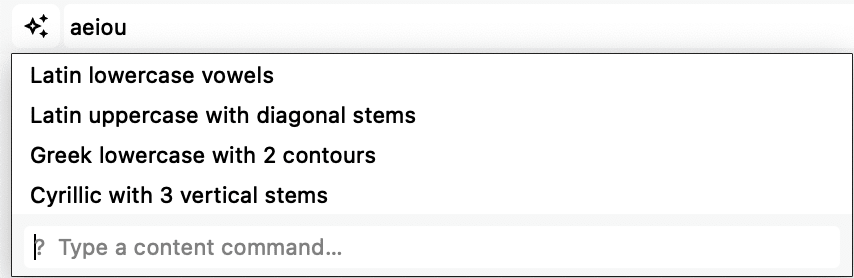
Smart Content helps put the text you need into the Glyph window. With AI configured, describe a sample or ask for a set of glyphs, such as all lowercase Cyrillic letters in the font. You can also generate combinations or change the case of existing text.

Smart Content selecting the Latin lowercase vowels a, e, i, o, and u.

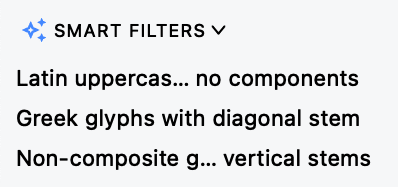
Smart Filters turn a description of the glyphs you want to see into a filter. With a compatible image model, Aidus can also generate a starting design for a missing glyph from references in your font. FontLab traces the result into editable contours and adds spacing.

Saved Smart Filters for glyphs with specific scripts, components, and stem directions.

Aidus uses your own AI provider via API key and gateway link.

External assistants and Python

Connect an external assistant

FontLab’s optional MCP server lets an AI assistant outside the app inspect and edit fonts using the same tools as built-in Chat. Enable the server separately in Preferences when you want to connect an assistant.

Write scripts with Chat

Describe a task and ask Aidus Chat to write a Python program for it. You can save the script for later, review and edit it in the Scripting panel, and reuse it on other fonts. Chat runs Python only when you allow it.

Debug in the Scripting panel

Set breakpoints, pause execution, and step over, into, or out of your Python code. Inspect stack frames and variables to see what the script is doing. Uncaught exceptions keep their stack available for inspection; stopping a script does not undo its font edits.

Languages and the user manual

Quick Help, Help panel articles, and welcome tips follow the selected interface language where translations are available, with English as the fallback. Choose your language in Preferences.

English

Deutsch

Français

Español

Polski

Čeština

हिन्दी

Bahasa Indonesia

Italiano

日本語

한국어

Português

Русский

ไทย

Türkçe

Українська

Tiếng Việt

简体中文

繁體中文

FontLab 9 comes with a new user manual covering drawing, spacing, variable fonts, OpenType layout, production, and automation. Open it from Help > User Manual or read it online.

Read the FontLab 9 manual →

Before you upgrade

Will my FontLab 8 settings come with me?

On first use, FontLab 9 offers to reuse your FontLab 8 preferences and data, including a custom data location.

Can I keep an earlier version installed?

Yes, different FontLab versions can coexist. Keep copies of your original projects while trying the new version, since earlier versions may not understand features introduced in FontLab 9.

Can I try it first?

The time-limited trial lets you open, edit, save, and export fonts. The activation dialog shows your trial's duration and remaining time.

Do I have to use AI?

No. You can use FontLab's drawing and font-production tools without connecting an AI provider. Aidus is optional, and external MCP access is enabled separately.

Can I save and share a proof of my font?

Yes. The Notepad panel lets you build a specimen with different text sizes, OpenType features, and variation locations. Its text and formatting are saved with the native font file. Export the full specimen as a vector PDF with searchable text for review or sharing.

Which operating systems does FontLab 9 support?

macOS and Windows. Check the requirements supplied with the FontLab 9 release before installing.

Read the manual

Find the tool or workflow you need in the FontLab 9 user manual.

Open the manual

Also available from Help > User Manual.

Upgrade FontLab

FontLab 8 Lifetime bought after 1 Jun 2026

Free

FontLab 8 Lifetime bought after 1 Jan 2026

$49

Any other FontLab (5, VI, 7, 8)

$149

Tax is additional.

Upgrade to FontLab 9Manage your account at pass.fontlab.com

Buy FontLab 9

Starter (4 months)Full functionality for 129 days from first activation.
$139
LifetimePay once, use forever!
With discounts on future upgrades.
$499

Tax is additional.

Buy FontLab 9

Mac & Windows · One user · Two computers.